AL Processing Charge - User guide
How to set up and use the app in Business Central.
This guide explains how to set up and use AL Processing Charge in Microsoft Dynamics 365 Business Central. The app lets you sell an item that goes through a light pre-delivery processing (for example sharpening, coating, grinding or finishing) and bill that processing as a separate revenue line, generated and assigned automatically through the standard Item Charge engine.
For a feature and positioning overview see the companion document "ALProcessingCharge-Datasheet-us.md".
Note: the screenshots in this guide are captured in a demo company and contain no real customer, vendor or personal data.
1. Concepts in one minute
- A Processing Charge Setup is a named profile (for example SHARPENING-STD) that points to a standard Item Charge and carries a default price plus, if needed, production data (routing, production BOM, self-consumption).
- On a sales Item line you pick a Processing Charge Setup. The item line keeps the item revenue; the processing is billed on a separate line.
- When the document is released, AL Processing Charge creates the matching Item Charge sales line, sets its quantity and assigns it to the item line, so item revenue and processing revenue stay distinct in posting and reporting.
- The processing type is a property of the line, not of the item: the same item code is used before and after processing (no SKU duplication).
2. Prerequisites
- Business Central version 28.0 or higher (Cloud/SaaS).
- The AppLibra dependencies installed automatically with the app: AL Foundation App, AL License and Trial Management, AL Message Passing, AL Role Center.
- At least one Item Charge defined with its posting setup (General/VAT posting groups), ready to be referenced by a Processing Charge Setup. The processing revenue is posted through this Item Charge, so no custom G/L logic is involved.
- Only for the optional production integration: a certified Routing and, if components are consumed, a certified Production BOM.
3. Setup
3.1 Open the setup list
Use Tell Me (Alt+Q) and search for Processing Charge Setups. The page lists only the Item Charge setups whose type is Processing Charge; new rows you create here are automatically typed as Processing Charge.
3.2 Create a processing charge type
Add a row and fill in:
| Field | Purpose |
|---|---|
| No. | Unique code identifying the processing type (e.g. SHARPENING-STD, COATING-LIGHT). |
| Description | Text shown on the sales-line lookup. |
| Item Charge code | The standard Item Charge used to post this processing. It governs posting groups and accounting setup. |
| Default Unit Price | The unit price proposed on the sales line when this setup is selected. Overridable line by line. |
| Keep Gen. Prod. Posting Group | If on, the generated Item Charge line inherits the Gen. Prod. Posting Group from the source item line. |
| Keep VAT Prod. Posting Group | If on, the generated Item Charge line inherits the VAT Prod. Posting Group from the source item line. |
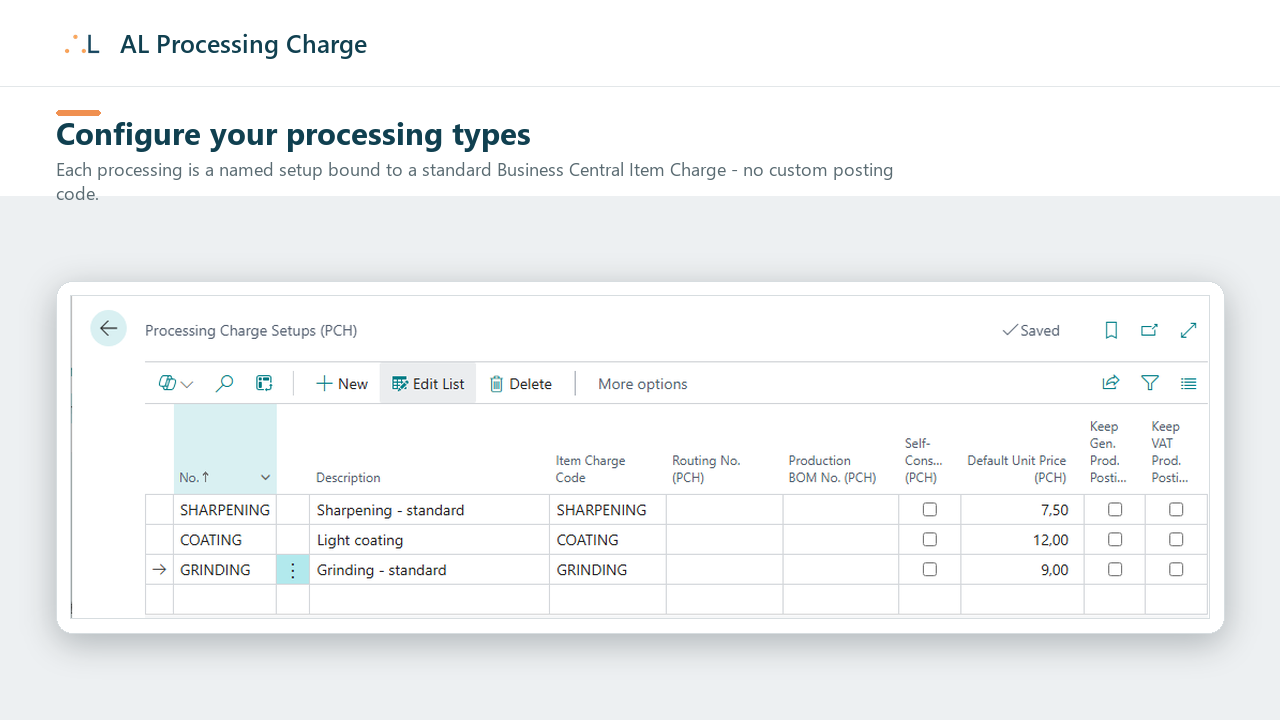
The minimum to start billing a processing is No., Item Charge code and (recommended) Default Unit Price. The production fields below are optional.
3.3 Optional - production data
Fill these only if the processing must also flow into a production order:
| Field | Purpose |
|---|---|
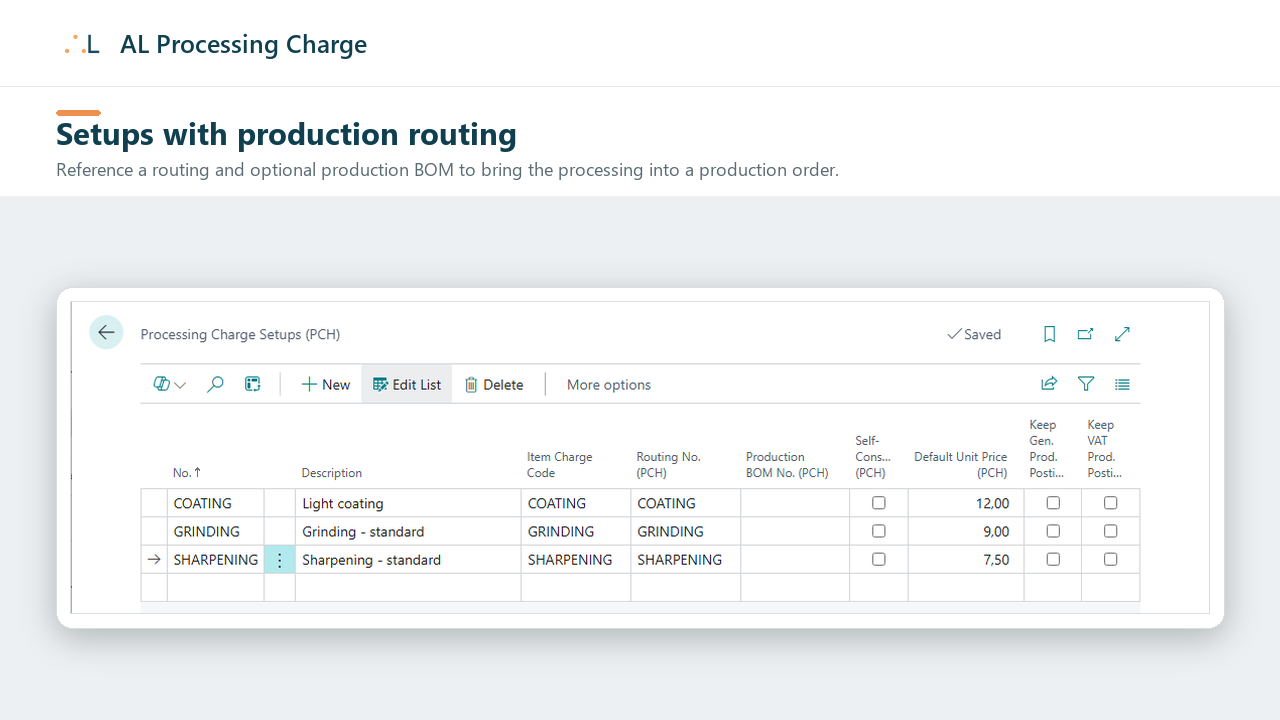
| Routing No. | The (certified) routing with the operations of this processing. Injected into the production order. |
| Production BOM No. | An optional (certified) production BOM, for processings that consume extra materials. |
| Self-Consumption | If on, the production order also consumes one unit of the output item itself. Use for processings (sharpening, coating, ...) that transform the item without changing its SKU. |
See section 5 for how these are used.
3.4 Optional - defaults from the item
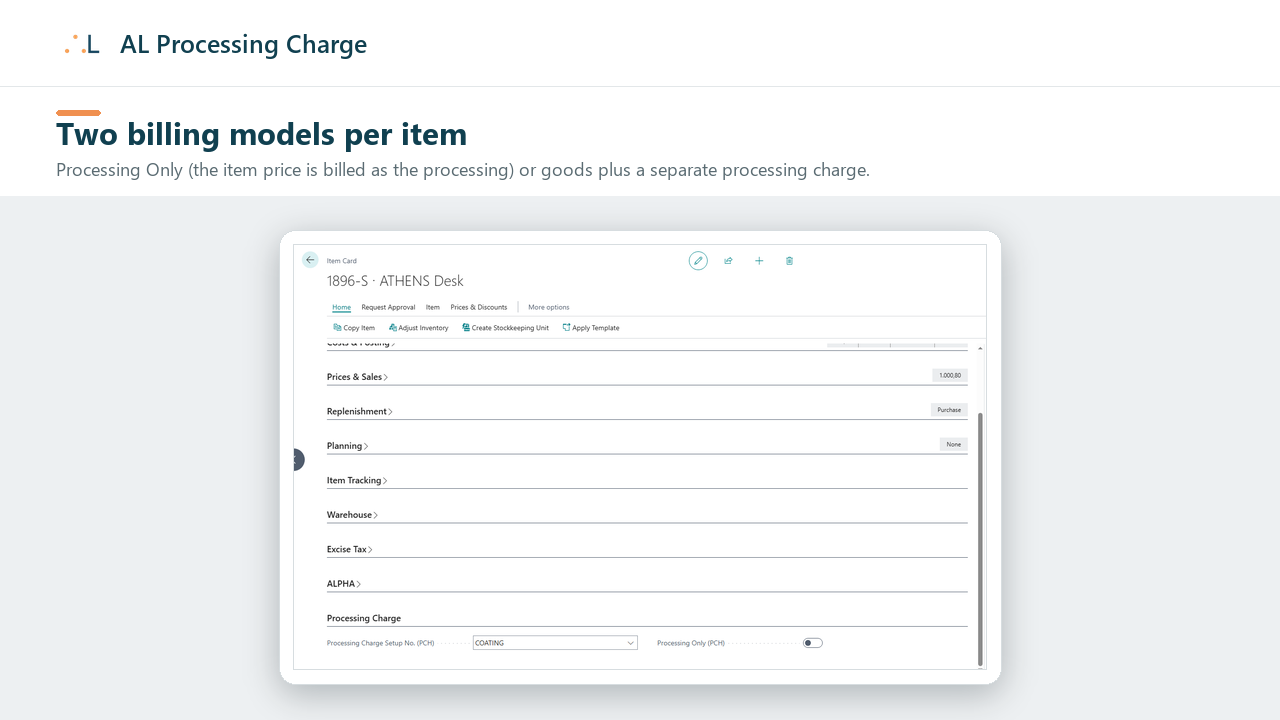
On the Item card, in the Processing Charge group, you can pre-configure how an item is processed and priced when it is sold:
- Processing Charge Setup No. (PCH) - a default processing type. When the item is added to a sales line, this setup (and its default price) is filled in automatically.
- Processing Only (PCH) - tells the app whether the item is billed as pure processing or as goods plus processing. It drives where the processing price comes from:
| Processing Only | Item line | Processing charge price |
|---|---|---|
| On - customer-owned goods / toll processing | the item's price is moved onto the processing charge; the item line keeps a zero price | the item's own (list) price |
| Off - the item is bought and resold with a processing | the item keeps its own price (item revenue) | the setup's Default Unit Price |
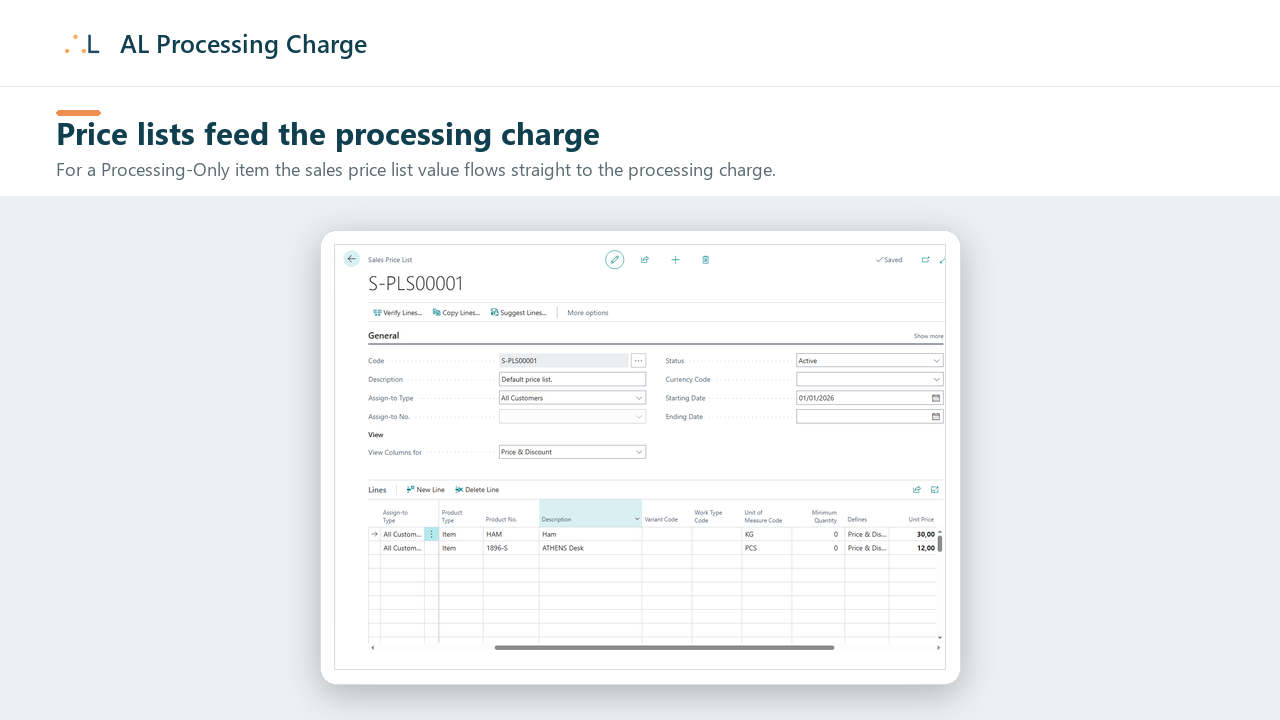
So for a Processing-Only item the value of any sales price list entry flows straight to the processing charge; for a normal item the price list prices the item as usual and the processing is billed separately at the setup default.
4. Daily use - sales documents
The processing charge is available on the Item lines of sales quotes, blanket orders, orders, invoices, return orders and credit memos. The steps below use the sales order; the others behave the same way.
4.1 Apply a processing to an item line
- On the sales order, enter the Item line as usual (item, quantity, unit price).
- In the Processing Charge Setup No. column, pick the processing type (the lookup shows the configured setups). The field is editable on Item lines only.
- The Processing Charge Unit Price is proposed from the setup's Default Unit Price. Override it on the line if needed.
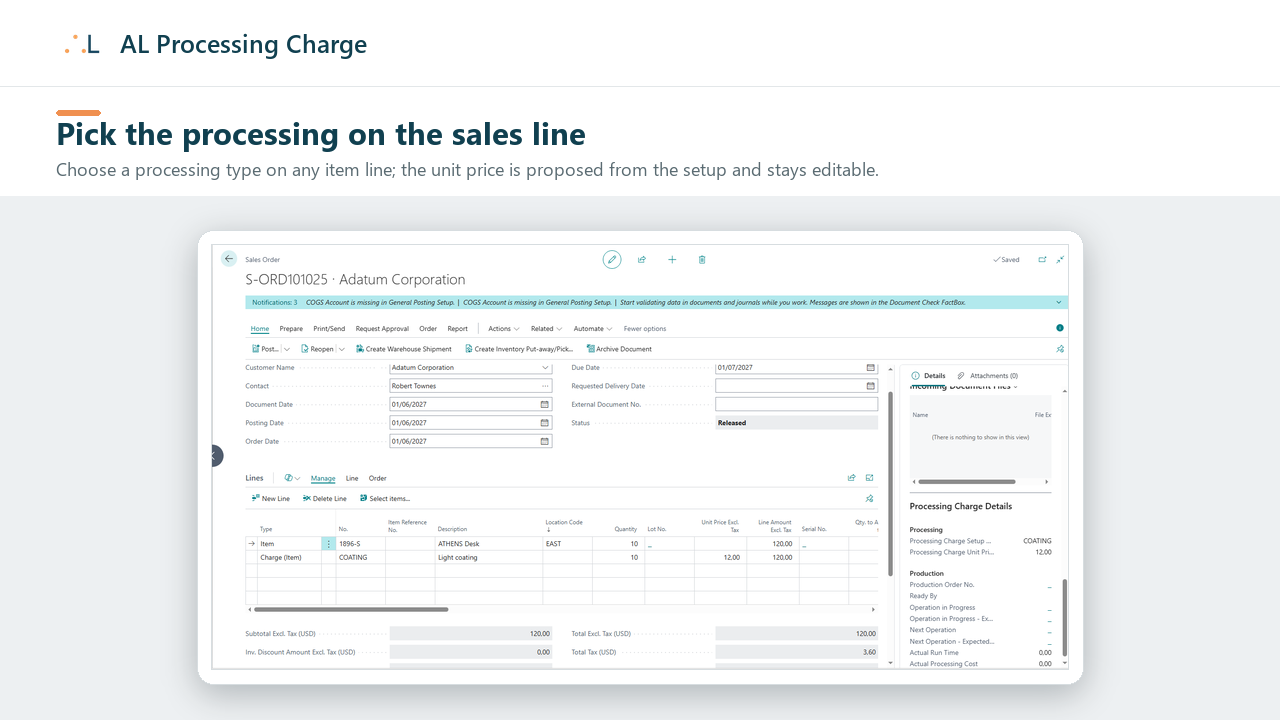
Note: when an item line carries a processing charge, the item's own Unit Price is no longer flagged as mandatory - the billable amount of the processing is carried by its own field. The item line can therefore keep its plain item price (even zero, for service-on-goods scenarios).
4.2 Review on the factbox
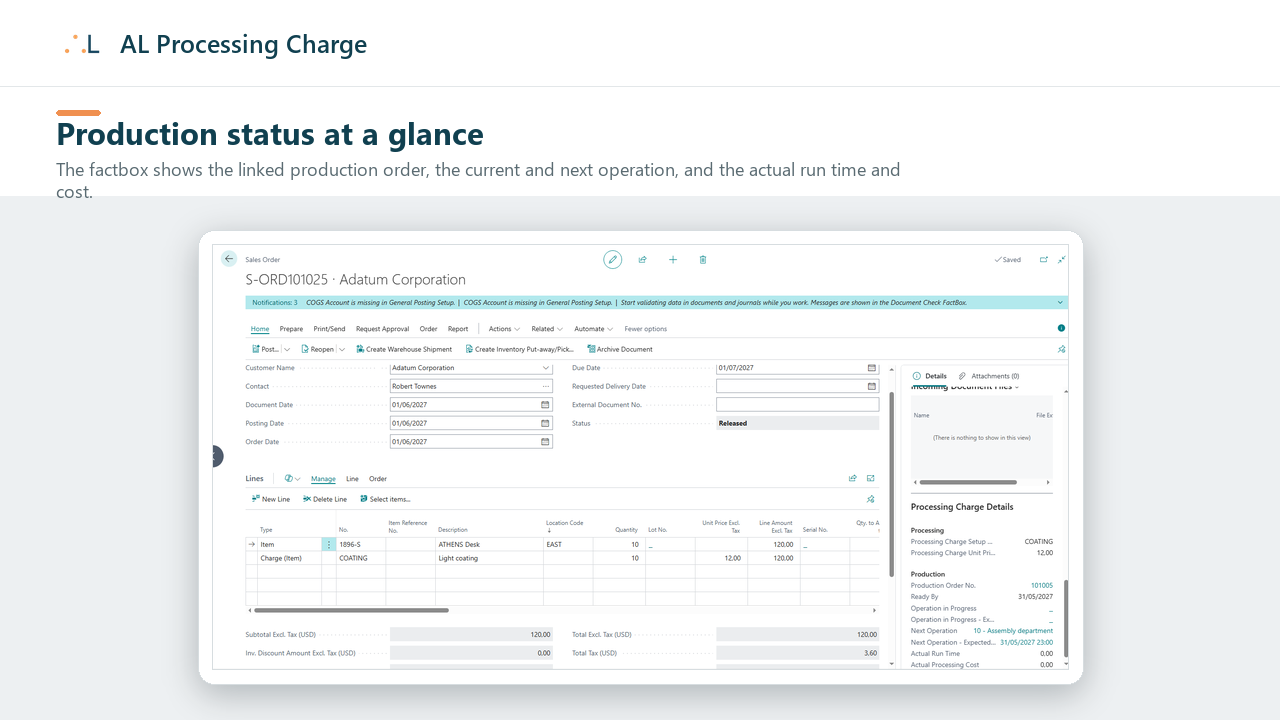
The Processing Charge Details factbox on the sales order shows the processing configuration of the selected line and, when present, the status of the linked production order.
4.3 Release the document
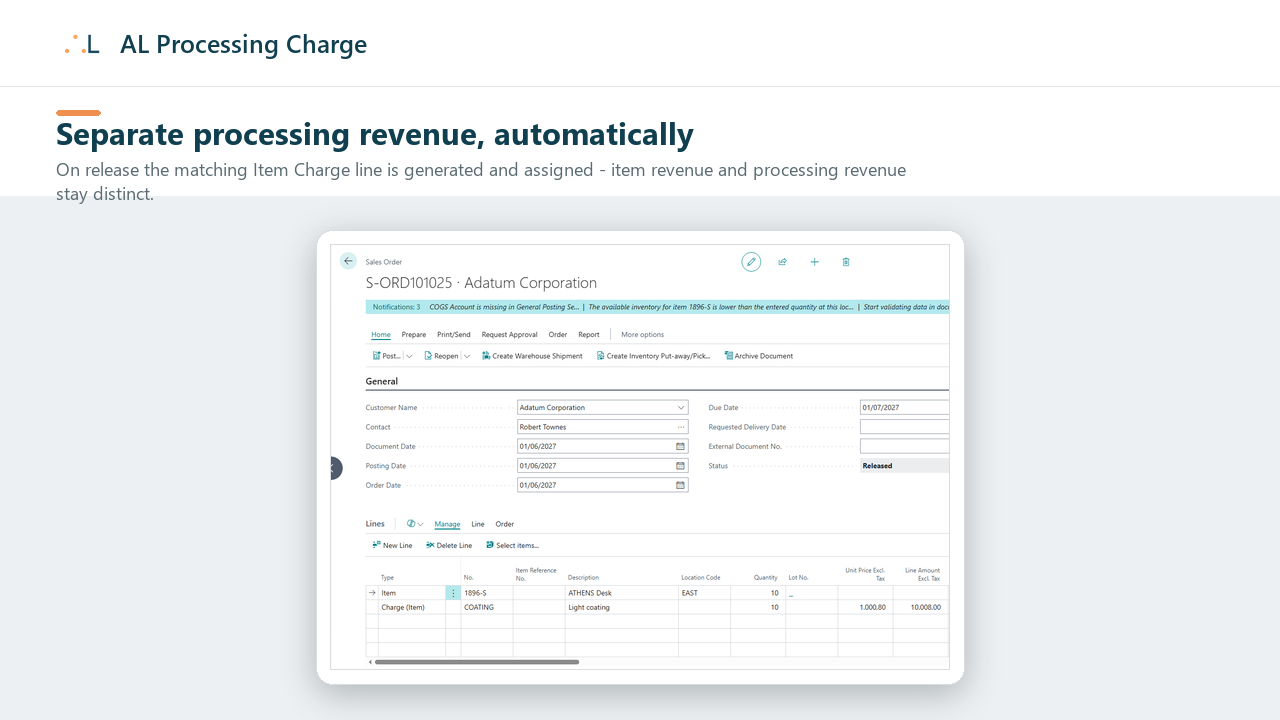
On Release, AL Processing Charge automatically:
- creates the matching Item Charge sales line for each item line that carries a processing charge;
- sets its quantity to follow the item line and assigns the charge to that item line;
- computes the charge unit cost from the Processing Charge Unit Price, net of any invoice discount and consistent with the document's "Prices Including VAT" flag.
Item revenue stays on the item line; processing revenue stays on the Item Charge line. You do not create or assign the charge line by hand.
4.4 Change your mind before posting
The charge line is self-healing. If, before posting, you change the Processing Charge Setup on a line or clear it, the matching charge line is updated or removed automatically on the next release. There is nothing to clean up manually.
4.5 Shipping and partial invoicing
The charge line follows the source item line through the document lifecycle: quantity-to-ship updates, warehouse shipment posting and partial invoicing keep the item line and its processing charge line aligned.
4.6 Quote to credit memo
The processing type flows from quote through order, shipment, invoice and (if needed) return order and credit memo, with the same fields on each subform, so it never has to be rekeyed.
5. Optional - production integration
If your processing types reference a routing (and optionally a production BOM), AL Processing Charge can turn the sales order into production orders for the shop floor.
5.1 Prepare
- On the relevant Processing Charge Setups, set Routing No. and, if needed, Production BOM No. and Self-Consumption (section 3.3). Routing and Production BOM must be Certified.
5.2 Create the production orders
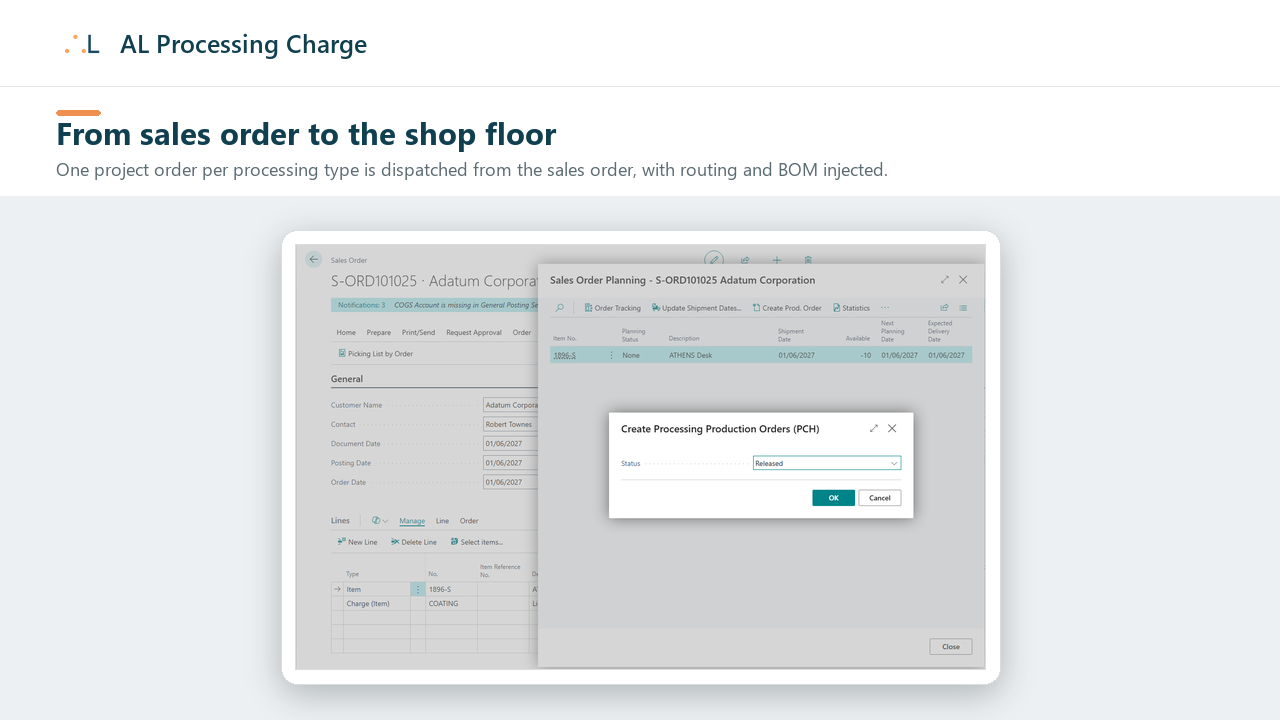
- From the sales order, start the creation of production orders from sales (the standard "Create Production Order" action).
- AL Processing Charge opens the Create Processing Production Orders dialog. It asks only for the Status to apply (default: Firm Planned); the order type is decided automatically.
- On confirmation, the dispatch creates:
- one Project Order per distinct Processing Charge Setup, grouping the sales lines that share that processing - so each workshop/department sees only its own work;
- one Item Order per line without a processing charge;
- and injects the configured routing and production BOM (plus self-consumption of the output item, when flagged) into the orders.
The linked production order status is visible from the Processing Charge Details factbox on the sales order.
6. Where it posts and how to analyze it
- Processing revenue posts through the standard Item Charge referenced by the setup; the posting groups are the Item Charge's own, optionally inherited from the source item line (Keep Gen./VAT Prod. Posting Group).
- Because item revenue and processing revenue sit on different lines with different posting setup, you can analyze the marginality of each processing operation separately from the marginality of the item, using standard Business Central reporting and analysis views.
7. Tips and troubleshooting
- The Processing Charge Setup No. field is not editable on a line. It is available on Item lines only - check the line Type.
- No charge line appears after release. Confirm the line has a Processing Charge Setup No. set, and that the document was actually released (not just saved).
- The charge posts to an unexpected account. Review the Item Charge's posting groups and the Keep Gen./VAT Prod. Posting Group flags on the setup.
- No production order is created for a line. Production dispatch uses the setup's Routing No.; a line whose setup has no routing is treated as a plain Item Order line. Routing and Production BOM must be Certified.
8. Support and resources
- Publisher: AppLibra
- Website: https://applibra.com
- Apps catalog: https://applibra.com/apps
- Privacy policy: https://applibra.com/privacy-policy
- Terms of use: https://applibra.com/terms