AL MES - User guide
How to set up and use the app in Business Central.
This guide explains how to set up and use AL MES in Microsoft Dynamics 365 Business Central. For a feature and positioning overview see the app page.
1. Concepts in one minute
- An MES User is an operator who acts on the shop floor from the operator client, which talks to Business Central over the AL MES Web API.
- Each Start / Pause / Finish on an operation is recorded as a timed routing entry; an operation can have several entries (pauses plus a finish).
- In the back office you review the entries and run Calc. and Open Output Journal: AL MES fills the Output Journal with produced quantity, scrap and run time, as machine and operator capacity lines.
- When one operator worked several operations in overlapping time, the time is split across them automatically, in proportion to the quantity produced.
2. Prerequisites
- Business Central 28.0 or higher (Cloud/SaaS).
- AppLibra dependencies installed automatically: AL License and Trial Management, AL Message Passing.
- Standard manufacturing in use: production orders with routings, Work and Machine Centers, and an Output (and, if needed, Consumption) item journal template and batch.
- The operator client configured to reach the Business Central Web API of this app.
3. Setup
3.1 Activate the license
Search for Setup (MES) in Tell Me (Alt+Q), open it and run Add License to activate the app (trial or full).
3.2 Setup (MES)
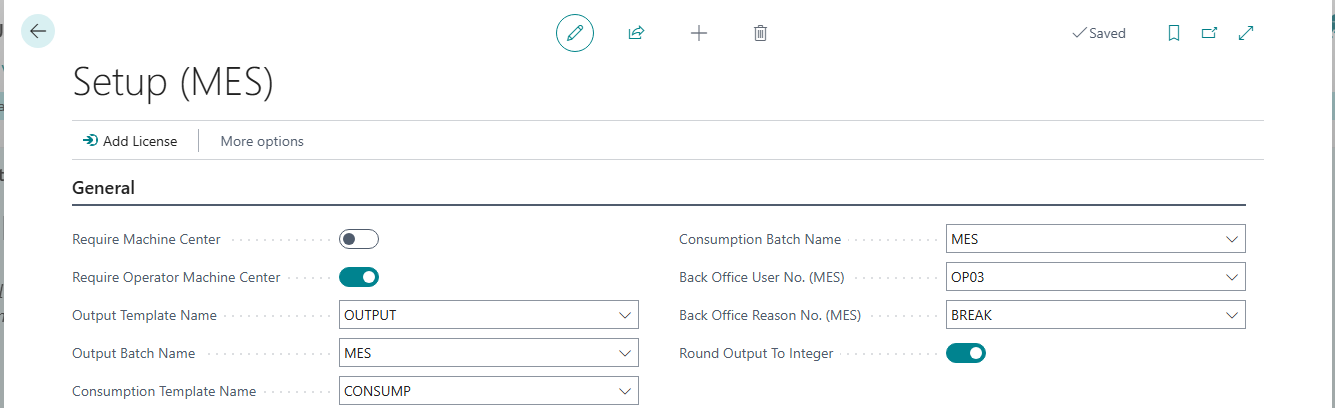
| Field | Purpose |
|---|---|
| Output Template / Batch Name | The item journal (Output) template and batch where AL MES writes output and capacity lines. |
| Consumption Template / Batch Name | The Consumption journal template and batch, if consumption is posted. |
| Back Office User No. (MES) | Default operator for postings made from the back office. |
| Back Office Reason No. (MES) | Default reason code for back-office postings. |
| Require Machine Center | If on, an operation must run on a Machine Center to be started. |
| Require Operator Machine Center | If on, posting fails when an operator in a co-work group has no Machine Center. |
| Round Output To Integer | If on, the output distributed across a shared phase is rounded to whole numbers. |
3.3 Users (MES) - operators
Search for Users (MES) and create one row per operator with No./Name, Capacity Type (Work or Machine Center) and Capacity No. (the center used for the operator's capacity line). The operator capacity center is what lets AL MES post operator capacity separately from machine capacity.
3.4 Reason codes
Search for Reason Codes (MES) and define the scrap/reason codes operators can pick when reporting scrap.
3.5 Web API
AL MES exposes API pages the operator client consumes (MES Users, Machine and Work Centers, Scrap Reasons, Routing Lines and Entries). Point the operator client at the company Business Central Web API base URL; no extra configuration is needed inside Business Central.
4. Daily use
4.1 On the shop floor
From the operator client, over the Web API, the operator picks an operation and presses Start; Pause and Start to interrupt and resume (each interval is a segment); Finish to enter the output quantity and any scrap with a reason. The same actions are available inside Business Central from the MES User card.
4.2 In the back office
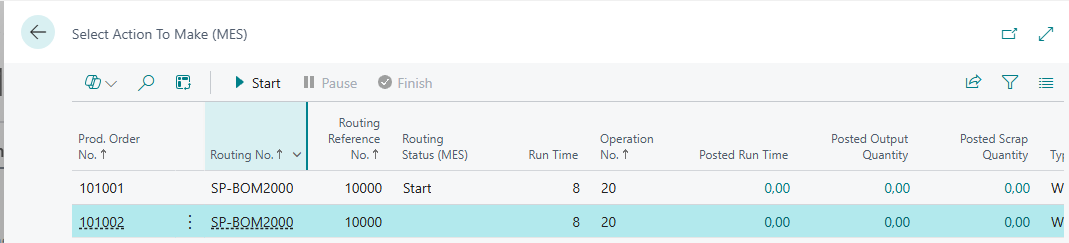
Open Routing Entries (MES) to see what the floor reported. Key actions: Get Active Prod. Order Routing Lines; Close User Active Prod. Order Routing Lines; Calc. and Open Output Journal (the main one - builds the prefilled Output Journal including the distributed operator capacity); Show Prod. Order Routing Lines.

The standard Prod. Order Routing page also shows a Routing Status (MES) column (blank, Start, Pause or Finish) for a quick read of the order.

4.3 Review and post
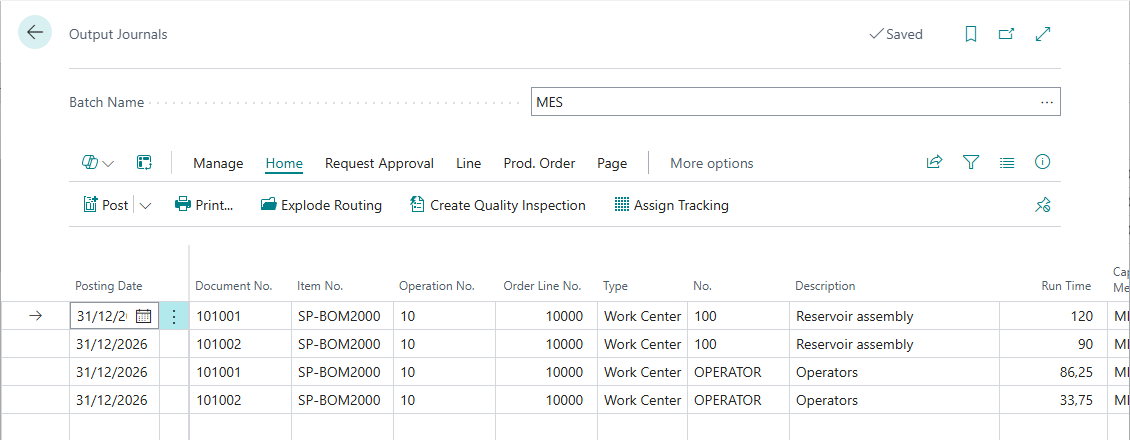
In the Output Journal you will find, per operation, a machine capacity line (output, measured run time, scrap) and an operator capacity line (the operator's share of run time). Review and Post with standard Business Central; the result is standard Capacity Ledger Entries plus the output.
5. How operator time is distributed
This runs automatically inside Calc. and Open Output Journal. When the same operator worked operations whose intervals overlap, AL MES groups them and splits the operator's wall-clock time across them in proportion to the quantity produced (equal split when the total quantity is zero). The distribution is computed only when every operation in the group is finished; otherwise posting is deferred, so the time is never allocated partially. Machine lines always carry the measured run time; only the operator line carries the distributed share.
6. Scheduling
The same calculation can run unattended from a Job Queue Entry, so the Output Journal is prepared (or posted, per your configuration) on a schedule instead of on demand.
7. Tips and troubleshooting
- An operation cannot be started - with Require Machine Center on, the operation must run on a Machine Center; check the routing line Type and the machine center.
- Posting fails for an operator with no capacity center - with Require Operator Machine Center on, every operator in a co-work group needs a Capacity No. on the MES User card.
- A co-work group does not post - it is deferred until all its operations are finished; close the still-open operation.
- No operator line appears - confirm the MES User has Capacity Type and Capacity No. set.